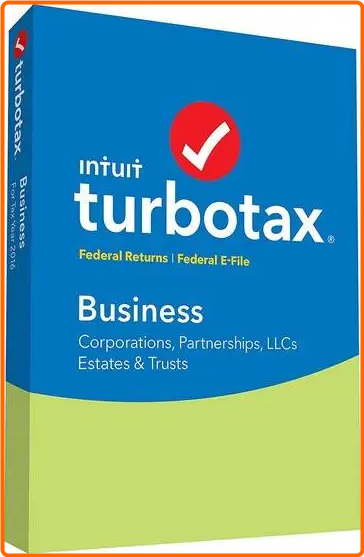
Intuit TurboTax All Editions 2025 (US) - (387 MB)

Gordo

Well-known member
Moderator
6xlh0sbf2pb8.png


TurboTax 2025 (US) All Editions
Get a head start on your 2024 taxes. File your tax return electronically to receive your fastest tax refund possible. Connect with an expert in a click and get answers when you need them with SmartLook™. Every personal TurboTax return is backed by our Audit Support Guarantee for free one-on-one audit guidance from a trained tax professional. And much more!

Guidance for homeowners
Your biggest investment might also be your biggest tax break-mortgage interest, property taxes, and more.
Deduction finder
We'll search for more than 350 tax deductions and credits to get you the biggest tax refund-guaranteed.
Complex life, simplified taxes
We'll guide you through life changes and their impact on your taxes, so you get every tax deduction and credit.
Deduct your donations
We'll help you track and value items you donate to charities with ItsDeductible™.
Audit Risk Meter™
Reduce your chance of a tax audit when we check your return for audit triggers and show your risk level.
Guidance for homeowners
Your biggest investment might also be your biggest tax break-mortgage interest, property taxes, and more.
Deduction finder
We'll search for more than 350 tax deductions and credits to get you the biggest tax refund-guaranteed.
Deduct your donations
We'll help you track and value items you donate to charities with ItsDeductible™.
Complex life, simplified taxes
We'll guide you through life changes and their impact on your taxes, so you get every tax deduction and credit.
Audit Risk Meter™
Reduce your chance of a tax audit when we check your return for audit triggers and show your risk level.
Education tax credits
If you or your children attended college or trade school, we'll help you find refund-boosting education tax credits and deductions (1098-E, 1098-T) for tuition, books, and student loan interest.
No tax knowledge needed
We'll ask you easy questions about your year and fill in the right tax forms for you.
Personalized to your unique situation
We ask questions to get to know you. Then, based on what you tell us, we'll search for every tax credit that applies to you.
Answers as you go
Free U.S.-based product support and easy-to-understand answers online 24/7.
Thousands of error checks
You won't miss a thing, we'll double-check your tax return for accuracy before you file.
Get tax deductions for your dependents
We'll show you who qualifies as your dependent, and find tax-saving deductions and credits like the Child & Dependent Care Credit, Earned Income Credit (EIC), and child tax credit.
Finish your state return faster
Once you complete your federal taxes, we can transfer your information over to your state return to help you finish quickly and easily.
Go at your own pace-no appointment necessary
Finish your tax return in one visit or do a little at a time. We automatically save your progress as you go, so you can always pick up where you left off.
Automatic import of your W-2 and 1099 info
Automatically import your W-2 from over a million employers, and your 1099 tax form data from participating
financial institutions.
Get a head start
We'll automatically import your information from last year's TurboTax return to help save time and increase accuracy. We'll even import personal information about you and your family if you prepared your taxes with TaxAct or H&R Block CD/Download software.

System Requirements
NOTE: TurboTax Business is Windows Only
Operating Systems
Windows 11 (64-bit)


found this about TurboTax app starting this year---
Based on official TurboTax support documentation, the TurboTax Desktop 2025 software (for tax year 2025) is designed to run only on Windows 11 (64-bit) or later. It will generally not install or run on Windows 10 due to Microsoft ending support for that operating system in October 2025.
RAM - 4 GB or more recommended
Hard Disk Space - 1 GB (plus up to 4.5 GB for Microsoft .NET 4.8 if not already installed)
Monitor - 1024x768 or higher recommended
Third Party Software - Microsoft Visual C++ 2022 Redistributable (included with TurboTax Installer), Microsoft .NET 4.8
Internet Connection - 1 Mbps modem (Broadband connection highly recommended)
Required for product activation, software updates and optional online features
Printer
Any Windows-compatible inkjet or laser printer
Administrative rights required

Credit to: kartroli

⋆🕷- - - - -☽───⛧ ⤝❖⤞ ⛧───☾ - - - -🕷⋆
⭐️ Intuit TurboTax All Editions 2025 (US) - (387 MB)

TurboTax 2025 US All Editions + TurboTaxEnabler 2025 - (384 MB) (It can patch all past and future versions)


RapidGator Link(s)


Code:
To see hidden content, You must be Registered user - Login OR Signup.

Freedl.ink Link(s)


Code:
To see hidden content, You must be Registered user - Login OR Signup.


OR Just The:
TurboTax Enabler--(It can patch all past and future versions)

Code:
To see hidden content, You must be Registered user - Login OR Signup.
 
Last edited:

Gordo

Well-known member
Moderator
kickstarter93759
2026.01.29 update broke this. Is the fix just like years past with dnspy?


vinay1493
2026.01.29 update has broken the workaround..

No idea what these mean---speak clear English and explain better

Other posts are saying that this app is still working so no idea what these messages are saying
 

kickstarter93759

Member
Registered Member
No idea what these mean---speak clear English and explain better

Other posts are saying that this app is still working so no idea what these messages are saying
Quite sure what was typed in proper english, but I'll bite. after updating the application to the 2026.01.29 revision TurboTax no longer launches. Replacing the .dll file with the [proper] / [official] variant allows it to load properly again. In years past, TurboTax patches require that you re-patch the .dll file to accommodate the updates. The previous .dll CANNOT work and must be remade for the new updates as it does version checks. DNSpy is the tool people previously used to patch the .dll file themselves. My question "Is the fix just like years past with dnspy?" resonates the curiosity if the 2025 version of TurboTax can be patched using the method that was on other forums for the past few years.

Also, "Other posts are saying that this app is still working" insinuates that "tx........................." somehow translates to "this app is still working" being as there (now) is 5 replies to this thread. 2 say it is not working, 1 says "tx", 1 is you saying "speak clear english" and "Other posts are saying that this app is still working", and the last is me saying this in "clear English" so that you can better understand the situation. Cheers, lad
 

kickstarter93759

Member
Registered Member
How to modify the DLL for Turbotax (TT) 2025 US version:

1. Install TT and install the latest updates during setup. When you re-start TT you will see the activation screen so you need to continue with the steps below to bypass the activation.

2. Navigate to the TT installation folder: Default folder is “C:\Program Files\TurboTax\Individual 2025\64bit”. Copy the “Intuit.Ctg.Wte.Service.dll” file, and save it somewhere as a backup.

3. Download dnSpy program for modifying DLL files (Google "dnspy" and select the github search result. Then click on the large "Latest release" link to download "dnSpy-net-win64.zip" or the win32 version)

4. Extract the dnSpy program files from the zip file. These are stand-alone files. No installation is required.

5. Right-click on dnSpy.exe, Run as Admin, once open, select File > Open. Navigate to the TT 64bit folder (see step 2) and select “Intuit.Ctg.Wte.Service.dll” and click Open. NOTE: You must open/edit the "Intuit.Ctg.Wte.Service.dll" while it is in the 64bit folder otherwise compiling in later steps will fail with errors!

6. If you do not see the “Assembly Explorer” column on the left side then open it: View > Assembly Explorer

7. Expand the following in the Assembly Explorer:
-Click on “Intuit.Ctg.Wte.Service”
-- Click on “Intuit.Ctg.Wte.Service.dll” (purple font)
---- Click on “Intuit.Ctg.Wte.Service.ProductConfiguration” (yellow font)
------ Click on “ProductConfigurationService” (blue font)

8. Below the “ProductConfiguationService” look in the red-orange items for “IsProductActivationRequired”, right click on it and choose "Edit Method (C#)…".

9. A window with code will open. Within the code, find the line that starts with “if (ProductConfigurationsService...” and delete from this line all the way down to the line directly above the one that begins with “return false;”. To do this, click, hold and drag the mouse on the line numbers to highlight these lines. Then press the delete key or press Ctrl-X to remove them.

10. The last 6 lines of the “IsProductActivationRequired” code should now look like this (spacing within each line may look different compared to actual code but that does not matter; extra blank lines won't matter either):

public bool IsProductActivationRequired()
{
return false;
}
}
}

11. At the bottom of the window, click "Compile" and the window will close. If the compiler shows errors, click the "Cancel" button and check the code from above carefully.

12. Still in Assembly Explorer find the item called “IsSupport“ which is directly below “IsProductActivationRequired”, right click on “IsSupport“ and choose "Edit Method (C#)".

13. A window with code will open. Within the code, find the line that shows “bool result = false;” and delete from this line all the way down to the line directly above the one that begins with “return result;”. To do this, click, hold and drag the mouse on the line numbers to highlight these lines. Then press the delete key or press Ctrl-X to remove them.

14. Now change the line “return result;” to “return true;” (don’t forget the semi-colon)

15. The last 6 lines of the“IsSupport” code should now look like this (spacing within each line may look different compared to actual code but that does not matter; extra blank lines won't matter either):

private bool IsSupport()
{
return true;
}
}
}

16. At the bottom of the window, click "Compile" and the window will close. If the compiler shows errors, click the "Cancel" button and check the code from above carefully.

17. In the main window of dnSpy, select File > Save Module. Click “OK” in the Save Module window that opens. If an access error occurs just close the error window and select Save Module again but choose a new location to save the file such as the desktop.

18. If you had an access error in step 17 and had to save the “Intuit.Ctg.Wte.Service.dll” file to a different location, go to step 19. Otherwise, go to step 20.

19. If access error occurred: Close the dnSpy program, rename the “Intuit.Ctg.Wte.Service.dll” file in the TT 64bit folder and copy the new file saved in step 17 to the 64bit folder. Now run TT and your product is "Activated". Skip step 20.

20. Close the dnSpy program and run TT. Your product is now "Activated" until the next TT update. After any TT update, you will likely have to update the DLL via these instructions if the DLL has changed at all.

21. Finally, after opening TT you can change the TT product via the menu Help > Switch product (choices are Basic, Deluxe, Premier, H&B)

State Instructions:

1. You have to edit the same dll, but find Intuit.Cfg.Wte.Service.Entitlement -> EntitlementService -> GetAvailableFreeStates()

2. right click on it and choose "Edit Method (C#)…" then change the below part

public virtual int GetAvailableFreeStates()
{
return 2;
}

(2 = how many states you want to download for free)

3. Compile, the File > Save Module
 
Last edited:

kickstarter93759

Member
Registered Member
How to modify the DLL for Turbotax (TT) 2025 US version:

1. Install TT and install the latest updates during setup. When you re-start TT you will see the activation screen so you need to continue with the steps below to bypass the activation.

2. Navigate to the TT installation folder: Default folder is “C:\Program Files\TurboTax\Individual 2025\64bit”. Copy the “Intuit.Ctg.Wte.Service.dll” file, and save it somewhere as a backup.

3. Download dnSpy program for modifying DLL files (Google "dnspy" and select the github search result. Then click on the large "Latest release" link to download "dnSpy-net-win64.zip" or the win32 version)

4. Extract the dnSpy program files from the zip file. These are stand-alone files. No installation is required.

5. Right-click on dnSpy.exe, Run as Admin, once open, select File > Open. Navigate to the TT 64bit folder (see step 2) and select “Intuit.Ctg.Wte.Service.dll” and click Open. NOTE: You must open/edit the "Intuit.Ctg.Wte.Service.dll" while it is in the 64bit folder otherwise compiling in later steps will fail with errors!

6. If you do not see the “Assembly Explorer” column on the left side then open it: View > Assembly Explorer

7. Expand the following in the Assembly Explorer:
-Click on “Intuit.Ctg.Wte.Service”
-- Click on “Intuit.Ctg.Wte.Service.dll” (purple font)
---- Click on “Intuit.Ctg.Wte.Service.ProductConfiguration” (yellow font)
------ Click on “ProductConfigurationService” (blue font)

8. Below the “ProductConfiguationService” look in the red-orange items for “IsProductActivationRequired”, right click on it and choose "Edit Method (C#)…".

9. A window with code will open. Within the code, find the line that starts with “if (ProductConfigurationsService...” and delete from this line all the way down to the line directly above the one that begins with “return false;”. To do this, click, hold and drag the mouse on the line numbers to highlight these lines. Then press the delete key or press Ctrl-X to remove them.

10. The last 6 lines of the “IsProductActivationRequired” code should now look like this (spacing within each line may look different compared to actual code but that does not matter; extra blank lines won't matter either):

public bool IsProductActivationRequired()
{
return false;
}
}
}

11. At the bottom of the window, click "Compile" and the window will close. If the compiler shows errors, click the "Cancel" button and check the code from above carefully.

12. Still in Assembly Explorer find the item called “IsSupport“ which is directly below “IsProductActivationRequired”, right click on “IsSupport“ and choose "Edit Method (C#)".

13. A window with code will open. Within the code, find the line that shows “bool result = false;” and delete from this line all the way down to the line directly above the one that begins with “return result;”. To do this, click, hold and drag the mouse on the line numbers to highlight these lines. Then press the delete key or press Ctrl-X to remove them.

14. Now change the line “return result;” to “return true;” (don’t forget the semi-colon)

15. The last 6 lines of the“IsSupport” code should now look like this (spacing within each line may look different compared to actual code but that does not matter; extra blank lines won't matter either):

private bool IsSupport()
{
return true;
}
}
}

16. At the bottom of the window, click "Compile" and the window will close. If the compiler shows errors, click the "Cancel" button and check the code from above carefully.

17. In the main window of dnSpy, select File > Save Module. Click “OK” in the Save Module window that opens. If an access error occurs just close the error window and select Save Module again but choose a new location to save the file such as the desktop.

18. If you had an access error in step 17 and had to save the “Intuit.Ctg.Wte.Service.dll” file to a different location, go to step 19. Otherwise, go to step 20.

19. If access error occurred: Close the dnSpy program, rename the “Intuit.Ctg.Wte.Service.dll” file in the TT 64bit folder and copy the new file saved in step 17 to the 64bit folder. Now run TT and your product is "Activated". Skip step 20.

20. Close the dnSpy program and run TT. Your product is now "Activated" until the next TT update. After any TT update, you will likely have to update the DLL via these instructions if the DLL has changed at all.

21. Finally, after opening TT you can change the TT product via the menu Help > Switch product (choices are Basic, Deluxe, Premier, H&B)

State Instructions:

1. You have to edit the same dll, but find Intuit.Cfg.Wte.Service.Entitlement -> EntitlementService -> GetAvailableFreeStates()

2. right click on it and choose "Edit Method (C#)…" then change the below part

public virtual int GetAvailableFreeStates()
{
return 2;
}

(2 = how many states you want to download for free)

3. Compile, the File > Save Module
For fully free states perform the stuff there then

1. Same file as before
2. Intuit.Cfg.Wte.Service.Entitlement -> EntitlementPresenter -> InvokePurchaseDialogue
3. Find "bool? dialogResult = " and make it "true"
4. Compile so it will now say "bool? dialogResult = new bool?(true);"
5. File, Save Module

6. The "Continue" button when asked for payment now skips the payment dialogue.

Pre-made 2026.01.29 dll will fully free States and Federal here: https://rapidgator.net/file/e191c02d94f95d58948be16e70ea8271/Intuit.Ctg.Wte.Service.zip.html
 

Gordo

Well-known member
Moderator
yes when the app gets an update then needs a new .dll file to activate


looks like you have answered your questions now
 

vinay1493

Member
Registered Member
Quite sure what was typed in proper english, but I'll bite. after updating the application to the 2026.01.29 revision TurboTax no longer launches. Replacing the .dll file with the [proper] / [official] variant allows it to load properly again. In years past, TurboTax patches require that you re-patch the .dll file to accommodate the updates. The previous .dll CANNOT work and must be remade for the new updates as it does version checks. DNSpy is the tool people previously used to patch the .dll file themselves. My question "Is the fix just like years past with dnspy?" resonates the curiosity if the 2025 version of TurboTax can be patched using the method that was on other forums for the past few years.

Also, "Other posts are saying that this app is still working" insinuates that "tx........................." somehow translates to "this app is still working" being as there (now) is 5 replies to this thread. 2 say it is not working, 1 says "tx", 1 is you saying "speak clear english" and "Other posts are saying that this app is still working", and the last is me saying this in "clear English" so that you can better understand the situation. Cheers, lad
Thanks for biting (don't think I would've had the patience to do that) and subsequent posts with the more detailed options..
'broken the workaround' on my part simply meant 'the product asked again to be activated'.. Don't think I could've worded it any better..
 

Gordo

Well-known member
Moderator
Added to the first post:

TurboTax 2025 US All Editions + TurboTaxEnabler 2025 - (384 MB) (It can patch all past and future version
 

b2bjunk

New Member
Registered Member
How to modify the DLL for Turbotax (TT) 2025 US version:

1. Install TT and install the latest updates during setup. When you re-start TT you will see the activation screen so you need to continue with the steps below to bypass the activation.

2. Navigate to the TT installation folder: Default folder is “C:\Program Files\TurboTax\Individual 2025\64bit”. Copy the “Intuit.Ctg.Wte.Service.dll” file, and save it somewhere as a backup.

3. Download dnSpy program for modifying DLL files (Google "dnspy" and select the github search result. Then click on the large "Latest release" link to download "dnSpy-net-win64.zip" or the win32 version)

4. Extract the dnSpy program files from the zip file. These are stand-alone files. No installation is required.

5. Right-click on dnSpy.exe, Run as Admin, once open, select File > Open. Navigate to the TT 64bit folder (see step 2) and select “Intuit.Ctg.Wte.Service.dll” and click Open. NOTE: You must open/edit the "Intuit.Ctg.Wte.Service.dll" while it is in the 64bit folder otherwise compiling in later steps will fail with errors!

6. If you do not see the “Assembly Explorer” column on the left side then open it: View > Assembly Explorer

7. Expand the following in the Assembly Explorer:
-Click on “Intuit.Ctg.Wte.Service”
-- Click on “Intuit.Ctg.Wte.Service.dll” (purple font)
---- Click on “Intuit.Ctg.Wte.Service.ProductConfiguration” (yellow font)
------ Click on “ProductConfigurationService” (blue font)

8. Below the “ProductConfiguationService” look in the red-orange items for “IsProductActivationRequired”, right click on it and choose "Edit Method (C#)…".

9. A window with code will open. Within the code, find the line that starts with “if (ProductConfigurationsService...” and delete from this line all the way down to the line directly above the one that begins with “return false;”. To do this, click, hold and drag the mouse on the line numbers to highlight these lines. Then press the delete key or press Ctrl-X to remove them.

10. The last 6 lines of the “IsProductActivationRequired” code should now look like this (spacing within each line may look different compared to actual code but that does not matter; extra blank lines won't matter either):

public bool IsProductActivationRequired()
{
return false;
}
}
}

11. At the bottom of the window, click "Compile" and the window will close. If the compiler shows errors, click the "Cancel" button and check the code from above carefully.

12. Still in Assembly Explorer find the item called “IsSupport“ which is directly below “IsProductActivationRequired”, right click on “IsSupport“ and choose "Edit Method (C#)".

13. A window with code will open. Within the code, find the line that shows “bool result = false;” and delete from this line all the way down to the line directly above the one that begins with “return result;”. To do this, click, hold and drag the mouse on the line numbers to highlight these lines. Then press the delete key or press Ctrl-X to remove them.

14. Now change the line “return result;” to “return true;” (don’t forget the semi-colon)

15. The last 6 lines of the“IsSupport” code should now look like this (spacing within each line may look different compared to actual code but that does not matter; extra blank lines won't matter either):

private bool IsSupport()
{
return true;
}
}
}

16. At the bottom of the window, click "Compile" and the window will close. If the compiler shows errors, click the "Cancel" button and check the code from above carefully.

17. In the main window of dnSpy, select File > Save Module. Click “OK” in the Save Module window that opens. If an access error occurs just close the error window and select Save Module again but choose a new location to save the file such as the desktop.

18. If you had an access error in step 17 and had to save the “Intuit.Ctg.Wte.Service.dll” file to a different location, go to step 19. Otherwise, go to step 20.

19. If access error occurred: Close the dnSpy program, rename the “Intuit.Ctg.Wte.Service.dll” file in the TT 64bit folder and copy the new file saved in step 17 to the 64bit folder. Now run TT and your product is "Activated". Skip step 20.

20. Close the dnSpy program and run TT. Your product is now "Activated" until the next TT update. After any TT update, you will likely have to update the DLL via these instructions if the DLL has changed at all.

21. Finally, after opening TT you can change the TT product via the menu Help > Switch product (choices are Basic, Deluxe, Premier, H&B)

State Instructions:

1. You have to edit the same dll, but find Intuit.Cfg.Wte.Service.Entitlement -> EntitlementService -> GetAvailableFreeStates()

2. right click on it and choose "Edit Method (C#)…" then change the below part

public virtual int GetAvailableFreeStates()
{
return 2;
}

(2 = how many states you want to download for free)

3. Compile, the File > Save Module
Thank you! Are these steps for updating after downloading/installing from the RapidGator link or would it work with an original TT download as well? TIA!
 

Gordo

Well-known member
Moderator
you download the TT app you want then follow the instructions that are included with the download to activate it
 

huntnplay

New Member
Registered Member
you download the TT app you want then follow the instructions that are included with the download to activate it
Hi, any chance these links are available for non-premium members. Any help would be appreciated. Thank You!!
 
Top